
As your protocol library grows, finding specific protocols becomes essential. The search and filter features help you instantly locate protocols by title, author, ingredients, category, or any keyword—whether you're looking through your Saved Protocols or your own created protocols.
Understanding Your Library Tabs
Your library is organized into two main tabs:
📚 Saved Protocols
Protocols created by others that you've bookmarked for reference. These are protocols you've discovered and saved to your personal library.
✏️ My Protocols
Protocols you've created yourself. Only visible to Pro subscribers who have created their own protocols.
Using the Search Bar
- 1Navigate to "My Library" from the main menu
- 2Select either "Saved Protocols" or "My Protocols" tab
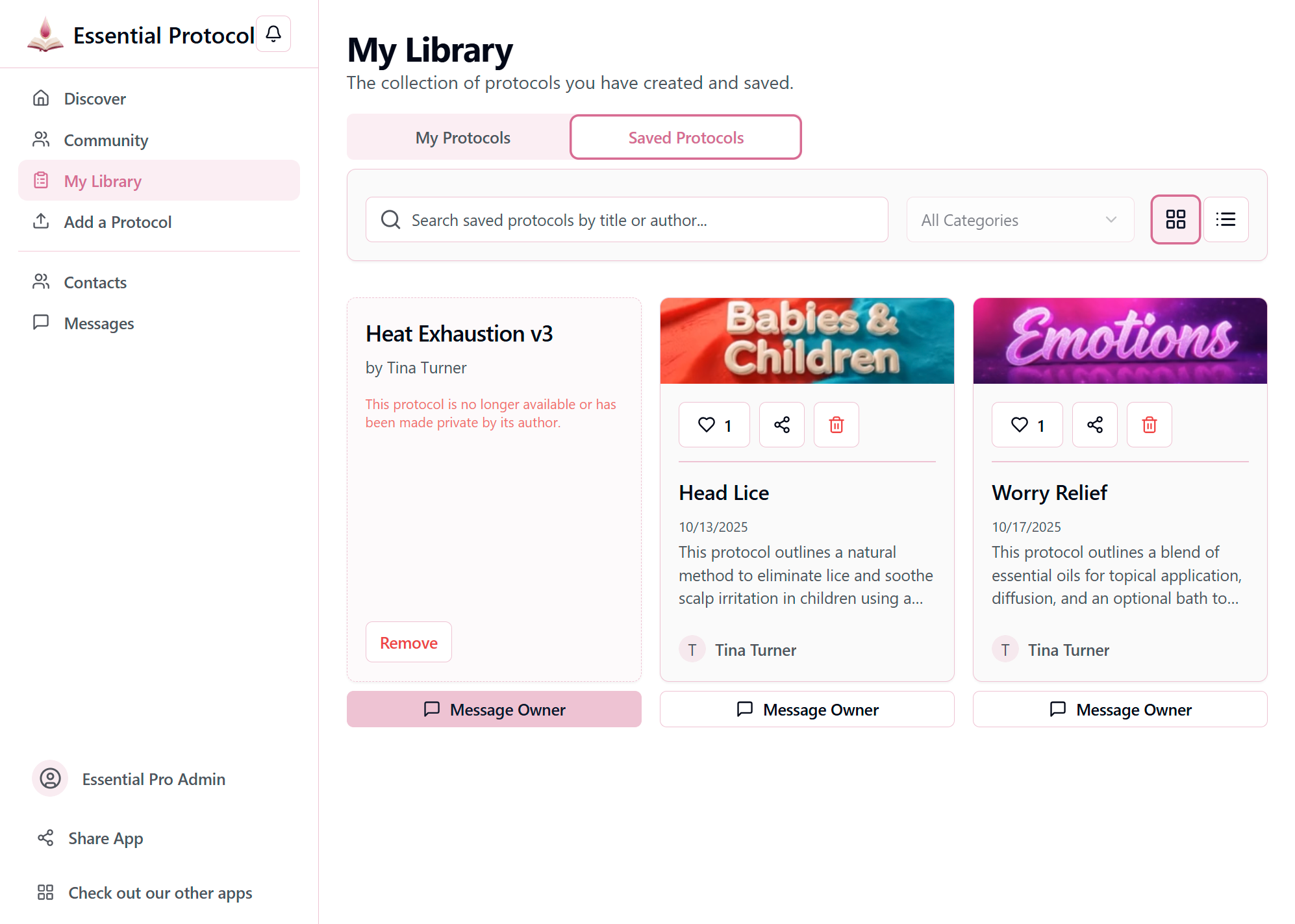
- 3Click in the search bar at the top of the page and type your search query (title, author, ingredient, or keyword). Results update instantly as you type.
Pro Tip
What You Can Search For
🔤 Protocol Titles
Search for specific protocol names or partial titles.
Example: "sleep" finds "Sleep Support Roller" and "Restful Sleep Blend"
👤 Author Names
Find protocols by specific authors you follow.
Example: "Sarah" finds all protocols created by users named Sarah
🌿 Ingredients & Oils
Locate protocols containing specific essential oils or ingredients.
Example: "peppermint" finds all protocols using peppermint oil
🏷️ Keywords & Tags
Search by categories, tags, or descriptive keywords.
Example: "immune" finds protocols tagged for immune support
Using Category Filters
Combine search with category filters for laser-focused results.
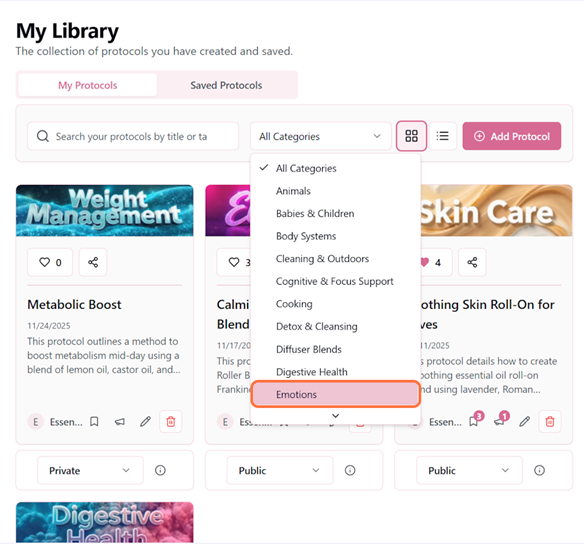
- 1Click the "Filter by Category" button and select a category. Filters apply instantly.
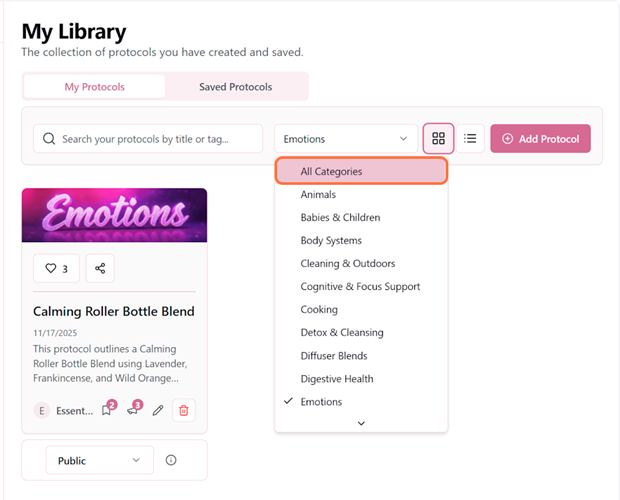
- 2Click "All Categories" to remove all category selections
Combining Search + Filters
For the most powerful searches, combine text search with category filters:
- 1.Select a category (e.g., "Body Systems")
- 2.Choose subcategories (e.g., "Respiratory")
- 3.Type your search term (e.g., "eucalyptus")
- 4.Now you see only respiratory protocols containing eucalyptus!
Advanced Search Tips
✓Be Specific
More specific searches yield better results. "Tension headache" is better than just "headache."
✓Try Variations
Search for both singular and plural terms. Try "kid," "kids," and "children" to catch all variations.
✓Use Partial Words
Search handles partial matches. "laven" will find "lavender" protocols.
✓Start Broad
If you get too few results, start with a broader search term and add filters to narrow down.
- Check spelling of your search term
- Try a broader or simpler keyword
- Remove category filters and search again
- Switch between "Saved Protocols" and "My Protocols" tabs
Clearing Search & Filters
To return to viewing your complete library:
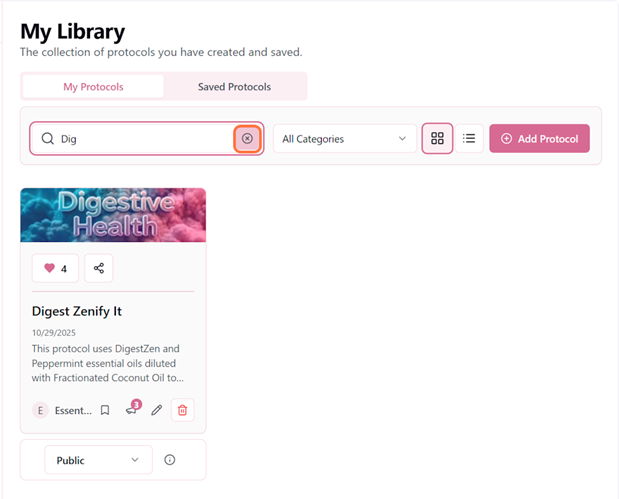
- Click the "X" in the search bar to clear your search term
- Select "All Categories" to remove category selections
- Both can be cleared independently or together
Organizing Your Growing Library
The search and filter tools become more valuable as your library grows. Consider developing a personal system—for example, saving all sleep-related protocols, then using search to find specific ones when needed. Think of it as your digital wellness filing cabinet!