
List view is a powerful alternative to the standard card grid layout. It displays your protocols in a compact, table-like format that makes it easy to scan titles, quickly compare details, and manage large collections efficiently.
Switching to List View
- 1Navigate to "My Library" from the main menu
- 2Click the "List View" toggle button in the top right corner
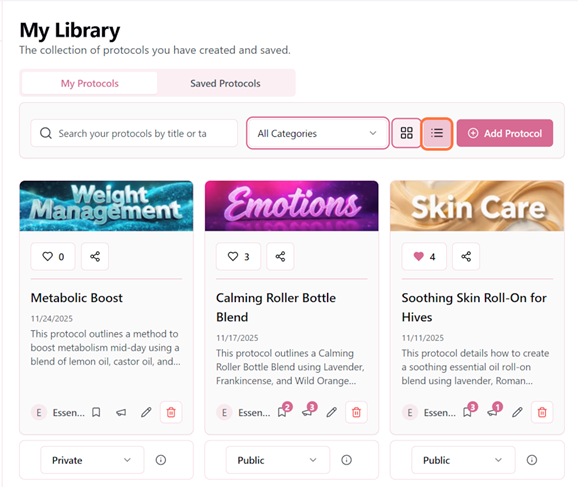
- 3Your protocols instantly switch to list format
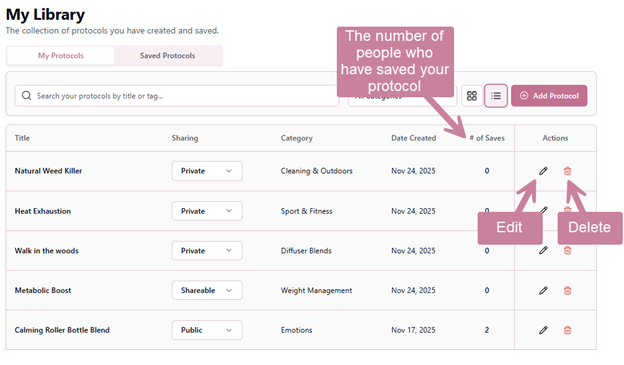
List View vs. Card View
📱 Card View
Best for browsing and visual discovery
- +Shows visual protocol previews
- +Easy to scan at a glance
- +Great for smaller collections
- +More actions are available via the icon buttons (share, like, message, etc.)
- −Takes more scrolling for large libraries
📋 List View
Best for management and quick access
- +See more protocols per screen
- +Quick access to visibility status
- +Perfect for large collections (50+ protocols)
- −Less visual, more text-focused
- −Click the protocol to view the protocol and access all the action buttons
Each row shows the essential information about your protocol at a glance, with color-coded visibility badges for quick identification.
Pro Tip
Sorting in List View
Click on column headers to sort your protocols:
- Title: Alphabetical A-Z or Z-A
- Category: Group by category type
- Visibility: Group by Private, Shareable, or Public
- Date: Newest first or oldest first
Power User Workflow
Many Pro users with 50+ protocols prefer to keep list view as their default. They use it to quickly check visibility settings, find protocols by title, and perform bulk management tasks. Card view becomes their "browsing mode" when they want to rediscover protocols visually or show their collection to others.