
You can update your payment method, billing address, and other payment details at any time through the Stripe customer portal. This is useful when your card expires, you want to use a different payment method, or your billing information changes.
Updating Your Payment Method
To change or add a new payment method:
- 1Click on your user menu
- 2Select "Manage Subscription" from the dropdown menu
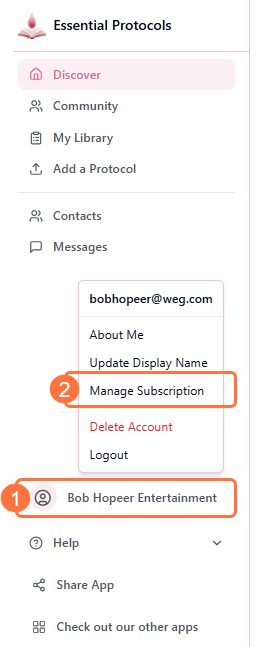
- 3You'll be redirected to the Stripe customer portal
- 4Find the "Payment Method" section showing your current card
- 5Click "Add payment method" to add a new card, or click the pencil/edit icon next to your existing card
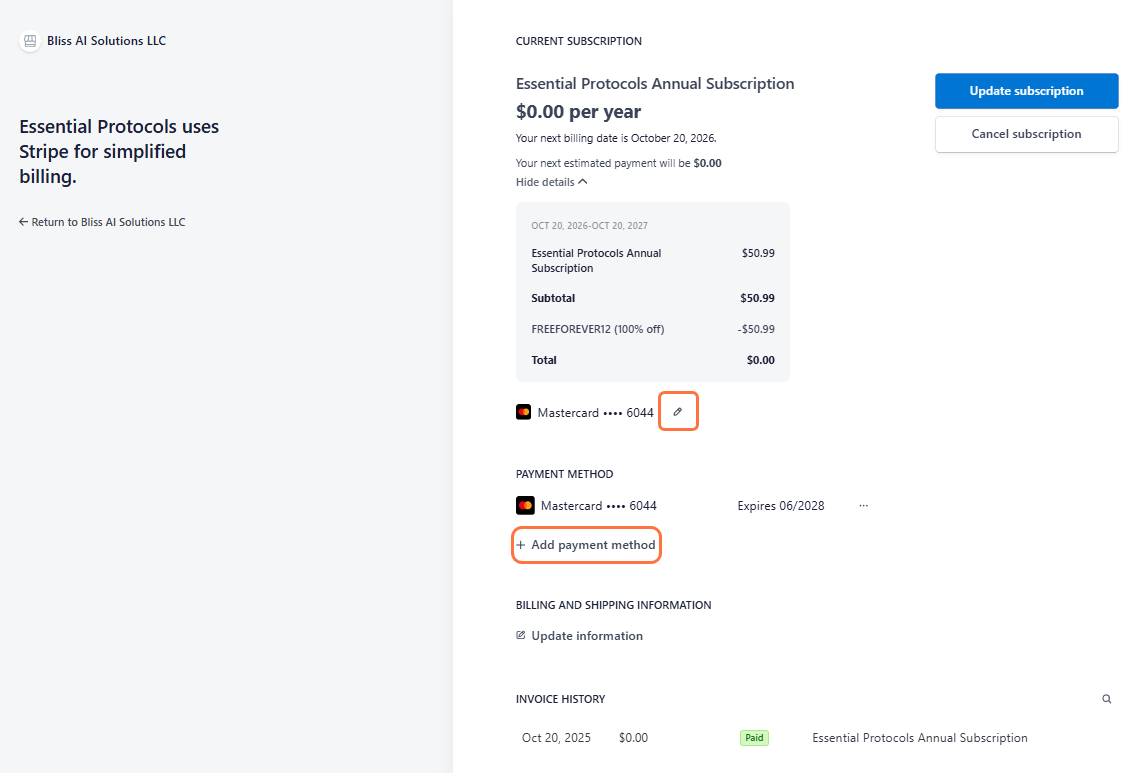
- 6Enter your new payment details (card number, expiration, CVV)
- 7Click "Save" or "Update" to confirm the changes
- 8Your new payment method will be used for all future payments
Instant Update
Managing Multiple Payment Methods
You can save multiple payment methods in your account:
- • Add backup payment methods in case your primary card fails
- • Keep expired cards on file (they'll be marked as expired)
- • Set one card as your default for all future payments
- • Remove old or unused payment methods
Updating Billing Address
To update your billing address:
- 1Access the Stripe customer portal (Menu → Manage Subscription)
- 2Scroll to find "Billing Information" or "Customer Information" section
- 3Click "Update information" or the edit icon
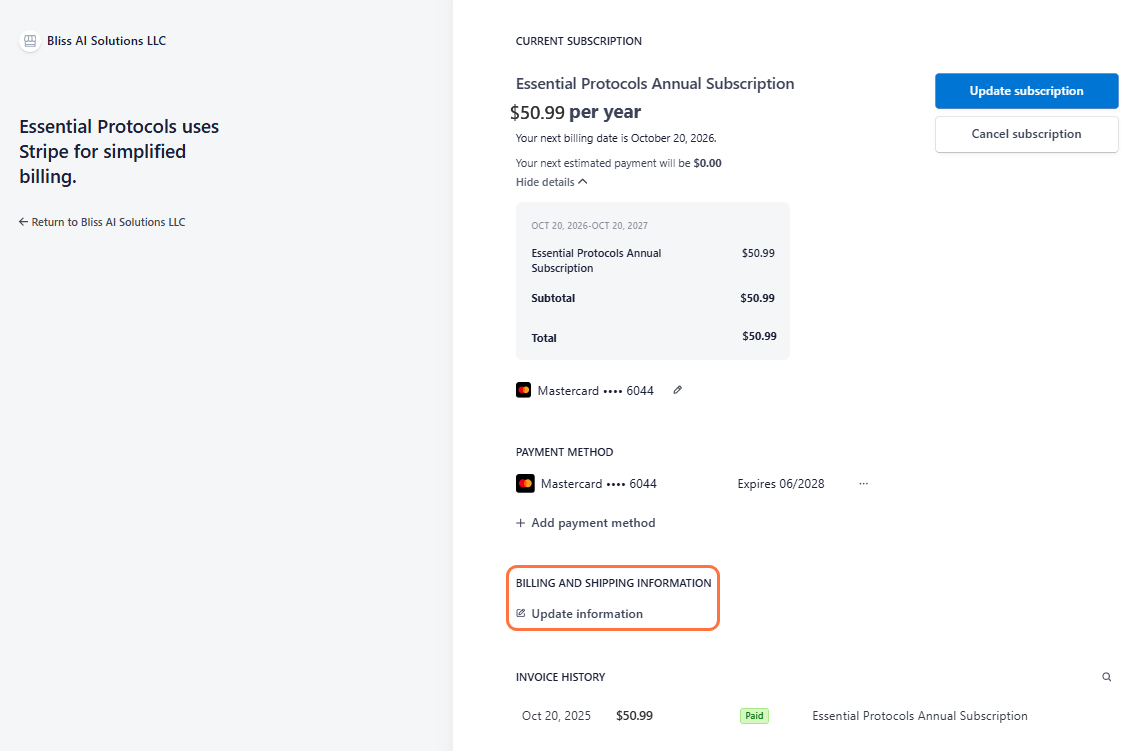
- 4Update your billing address fields
- 5Click "Save" to confirm changes
Why Billing Address Matters
When Your Card Expires
If your payment method is expiring soon or has expired:
- • Stripe may send you email reminders to update your payment method
- • Your subscription will attempt to renew with the expired card
- • If payment fails, you'll receive notifications to update your card
- • You typically have a grace period before your subscription is cancelled
Pro Tip:
Update your payment method BEFORE your card expires to avoid any interruption in service. Check your card's expiration date and update it a month early to be safe.
Accepted Payment Methods
Essential Protocols accepts the following payment methods through Stripe:
- • Credit Cards: Visa, Mastercard, American Express, Discover
- • Debit Cards: Most major debit cards with credit card logos
- • Digital Wallets: Apple Pay, Google Pay (when available on your device)
International Cards
Troubleshooting Payment Issues
Payment Declined
If your payment is declined:
- • Verify your card has sufficient funds
- • Check that all card details are entered correctly (number, CVV, expiration)
- • Ensure your billing address matches your card's registered address
- • Contact your bank - they may have flagged the transaction
- • Try a different payment method
Can't Update Payment Method
If you're having trouble updating:
- • Clear your browser cache and cookies
- • Try a different web browser
- • Disable browser extensions that might interfere
- • Make sure your browser is up to date
Duplicate Charges
If you see duplicate charges, this is usually a temporary authorization hold that will be released by your bank within a few days. If the duplicate charge doesn't disappear, contact support with your invoice details.
Security & Privacy
Your payment information is handled securely:
- • All payment processing is done through Stripe, a PCI-compliant payment processor
- • We never store your full credit card number on our servers
- • Card details are encrypted and tokenized
- • Your CVV security code is never saved
- • Stripe uses industry-standard security measures to protect your data