
Keep your inbox organized by archiving completed conversations or permanently deleting messages you no longer need. Understanding the difference between archiving and deleting helps you maintain a tidy message center while preserving important information.
Pro Feature
Archive vs. Delete
Archive (Recommended)
Best for conversations you want to keep but don't need to see in your active inbox:
- Moves conversations to the Archived tab
- Can be restored to Active at any time
- Keeps full conversation history
- Ideal for completed or resolved discussions
Delete (Permanent)
Use when you want to permanently remove conversations:
- Removes conversations from both Active and Archived tabs
- Cannot be recovered once deleted
- Only affects your view (other person still has the conversation)
- Requires confirmation to prevent accidents
How to Archive Conversations
- 1Navigate to the Messages page and ensure you're on the Active tab
- 2Select one or more conversations by clicking the checkbox next to each conversation
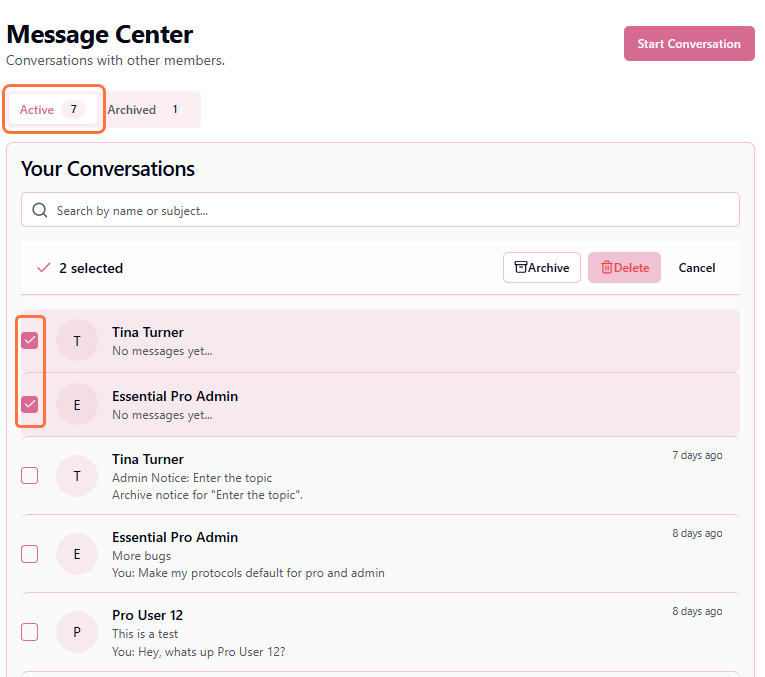
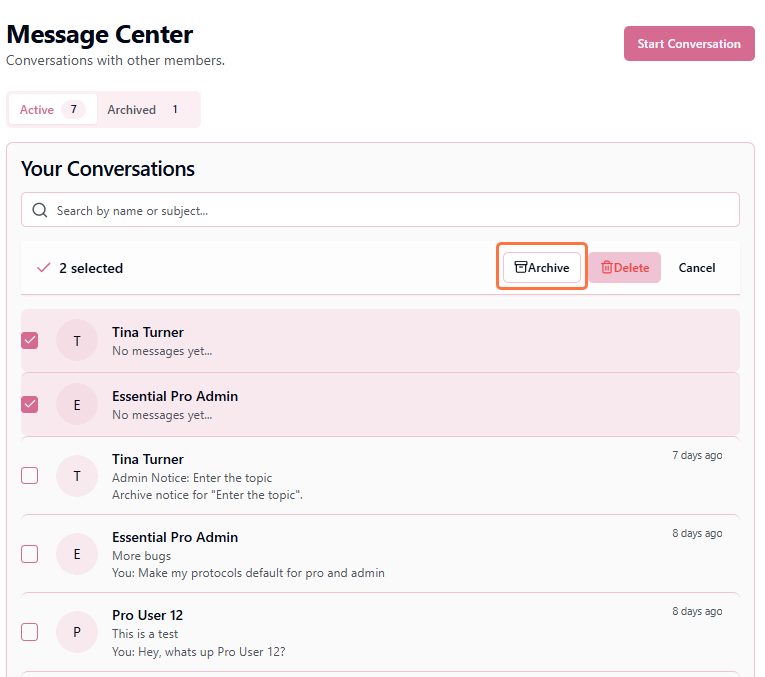
- 3An action bar will appear at the top showing how many conversations are selected. Click the "Archive" button.
- 4The selected conversations are immediately moved to the Archived tab
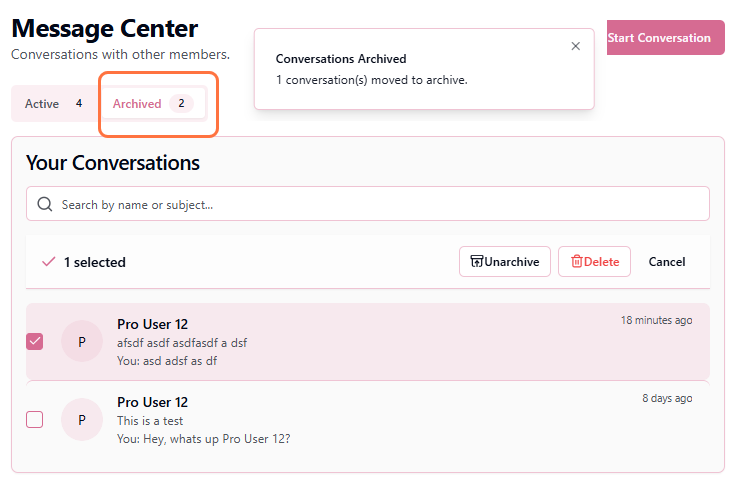
How to Unarchive Conversations
- 1Switch to the Archived tab at the top of the Messages page
- 2Select the conversations you want to restore by clicking their checkboxes
- 3Click the "Unarchive" button in the action bar
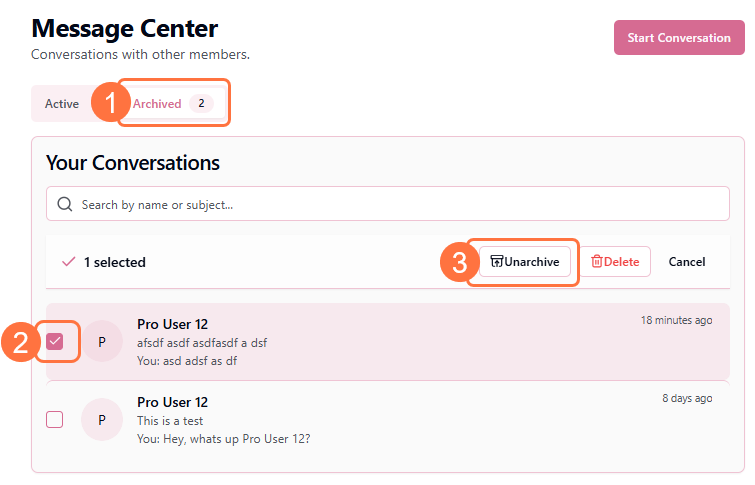
- 4The conversations are moved back to your Active inbox
How to Delete Conversations
- 1From either the Active or Archived tab, select conversations using the checkboxes
- 2Click the "Delete" button in the action bar
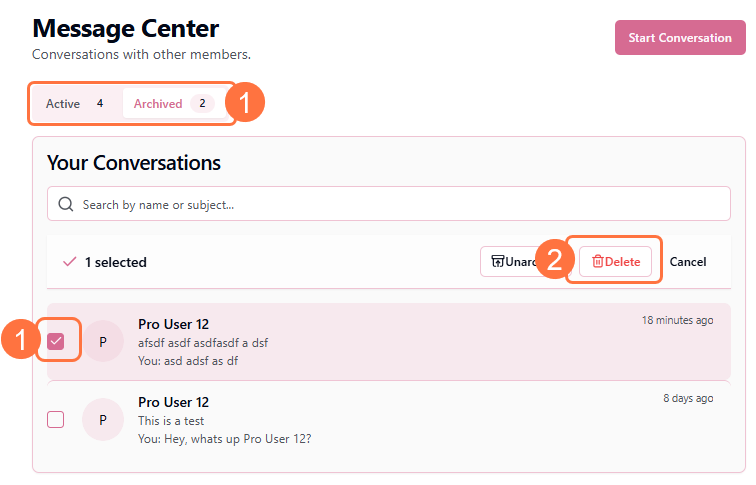
- 3A confirmation dialog appears asking "Delete this conversation?" (or "Delete these X conversations?" for multiple)
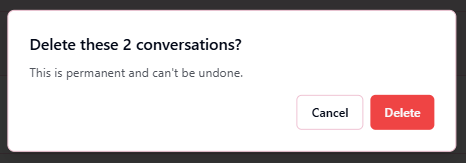
- 4Review the warning: "This is permanent and can't be undone."
- 5Click "Delete" to confirm, or "Cancel" to keep the conversations
- 6The conversations are permanently removed from both tabs
Bulk Selection Tips
- ✓Select multiple conversations at once to archive or delete in bulk
- ✓The action bar shows exactly how many conversations you've selected
- ✓Click "Cancel" in the action bar to deselect all conversations
- ✓Switching between Active/Archived tabs clears your selection
What Happens When You Archive or Delete
For You (Archive)
- Conversation moves from Active to Archived tab
- Full message history is preserved
- Can be unarchived at any time
- Still searchable when viewing the Archived tab
- Other person is not notified
For You (Delete)
- Conversation is permanently removed from your view
- Cannot be recovered
- Removed from both Active and Archived tabs
- No longer appears in search results
- Other person is not notified
For Other Participants
- They still see the full conversation in their inbox
- Your actions don't affect their message center
- They're not notified when you archive or delete
- They can still send you new messages
Important
Best Practices for Message Management
Archive regularly: Move completed conversations to the Archived tab to keep your Active inbox focused on current discussions. You can always find them later if needed.
Think before deleting: Deletion is permanent. If there's any chance you'll need the information later, archive instead of delete.
Use bulk actions: Clean up multiple conversations at once by selecting several and archiving or deleting them together.
Review archived messages: Periodically check your Archived tab and permanently delete conversations you're certain you won't need.
The Power of Clean Communication
A well-managed inbox isn't just about aesthetics—it's about mental clarity and professional efficiency. When your message center contains only active, relevant conversations, you can focus on meaningful engagement instead of wading through clutter. Use archiving for conversations you might need later, and deletion for those you're certain you won't. Remember: every message you keep, archive, or remove is a choice about what matters in your professional life. Choose wisely, and your future self will thank you.