
Essential Protocols can be installed on your Windows, Mac, or Linux computer as a Progressive Web App (PWA). This gives you a native app-like experience with a dedicated window, desktop shortcut, and the ability to launch it like any other application on your computer.
Browser Requirements
- • Google Chrome (recommended) - Windows, Mac, Linux
- • Microsoft Edge - Windows, Mac
- • Brave Browser - Windows, Mac, Linux
- • Opera - Windows, Mac, Linux
Note: Firefox and Safari on desktop do not currently support PWA installation.
Installation Steps (Chrome/Edge)
The installation process is similar across all supported browsers. These instructions use Chrome, but Edge follows nearly identical steps.
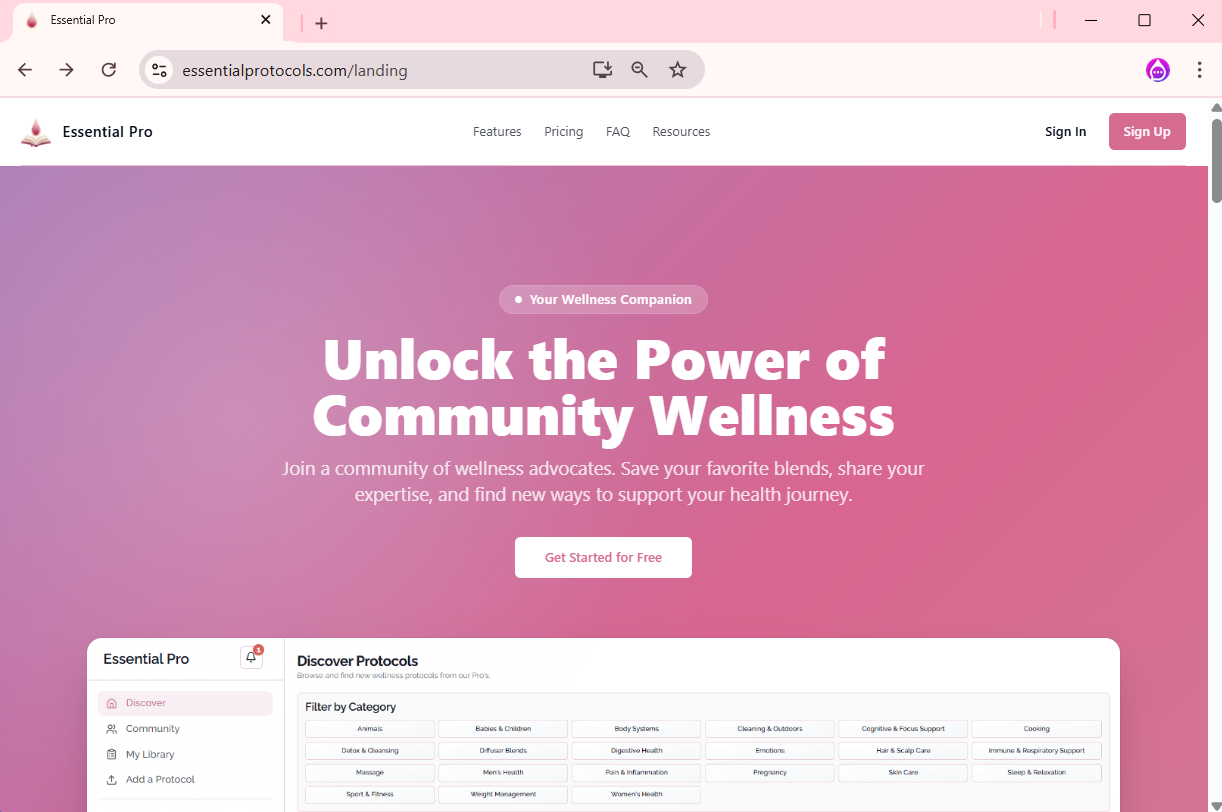
- 1Navigate to essentialprotocols.com or scan this QR code from your computer

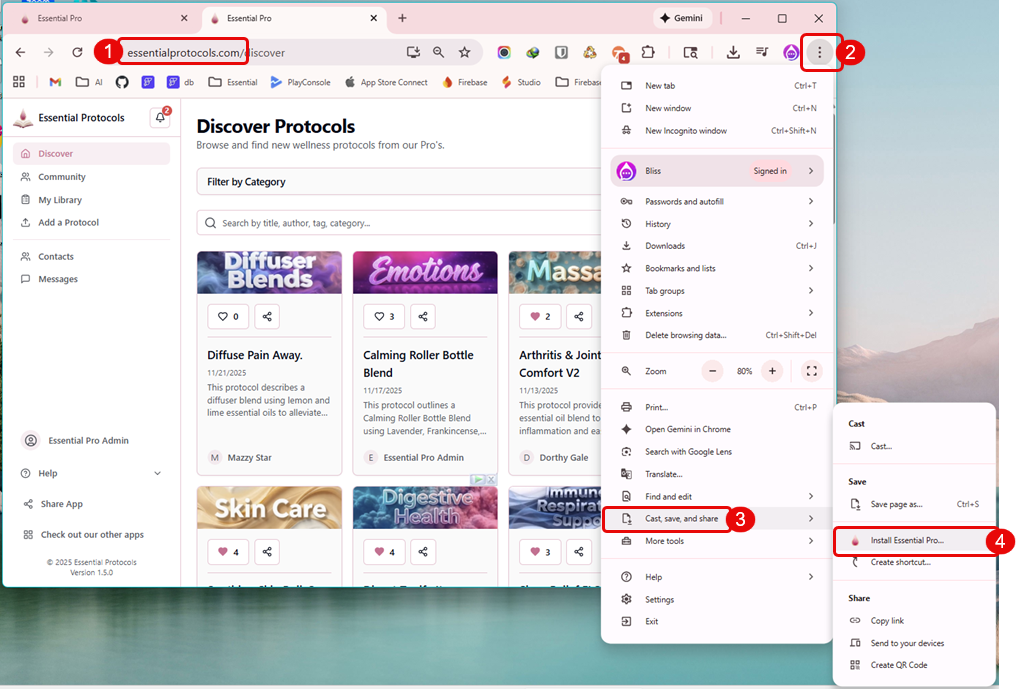
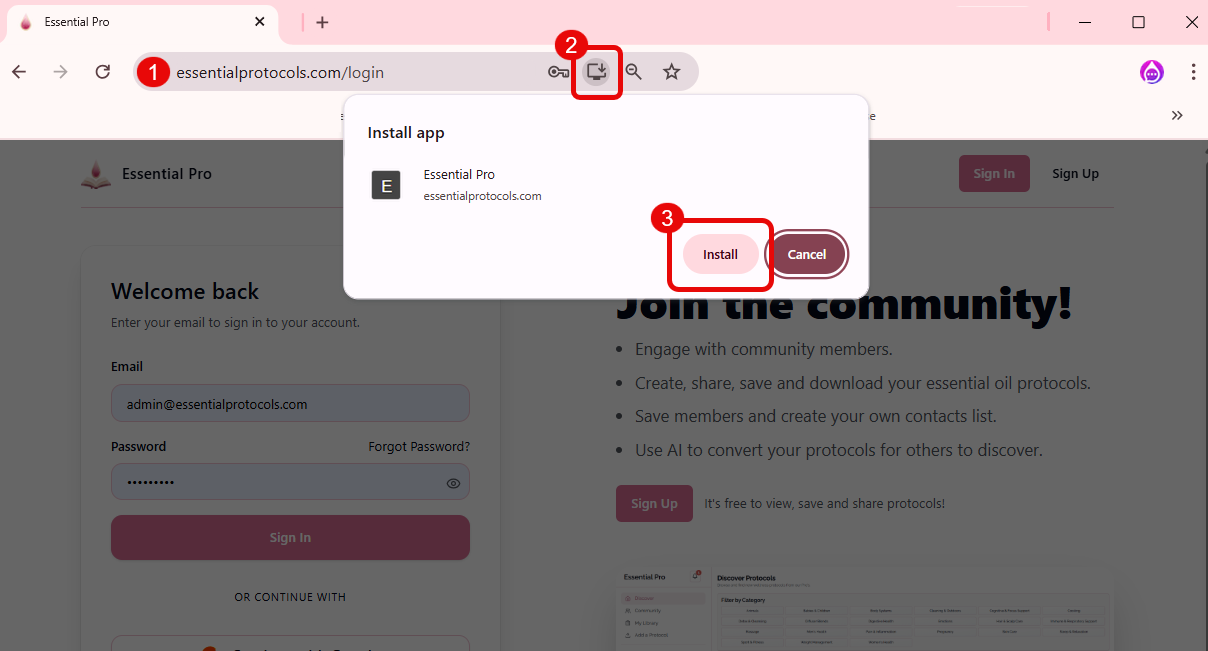
- 2Look for the install icon in the address bar (a computer monitor with a down arrow) and click it
- 3Alternatively, click the three-dot menu in the top-right corner
- 4Select "cast, save, and share" → "Install Essential Protocols"
- 5A confirmation dialog will appear. Click "Install" to proceed
- 6Essential Protocols will open in its own window and a shortcut will be added to your applications
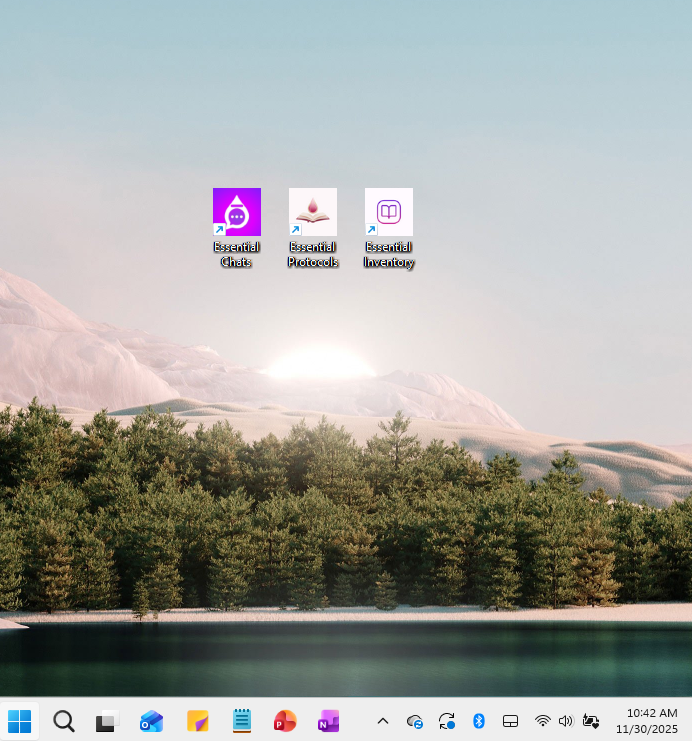
- 7You can now launch Essential Protocols from your Start Menu (Windows), Applications folder (Mac), or Desktop shortcut
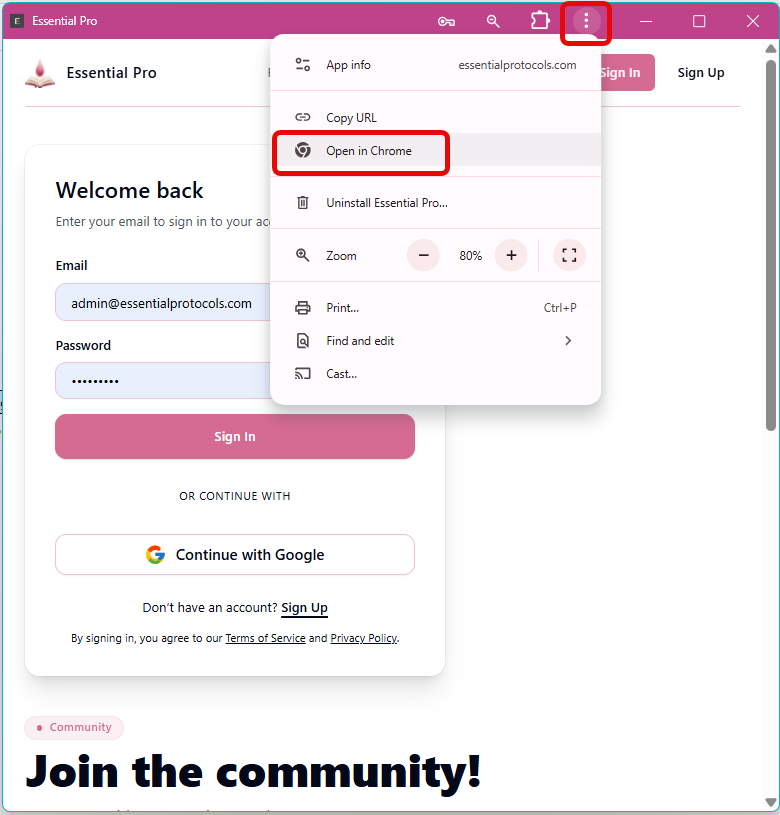
- 8Stop using the desktop app by clicking the three dots in the header and selecting "Open in Chrome"
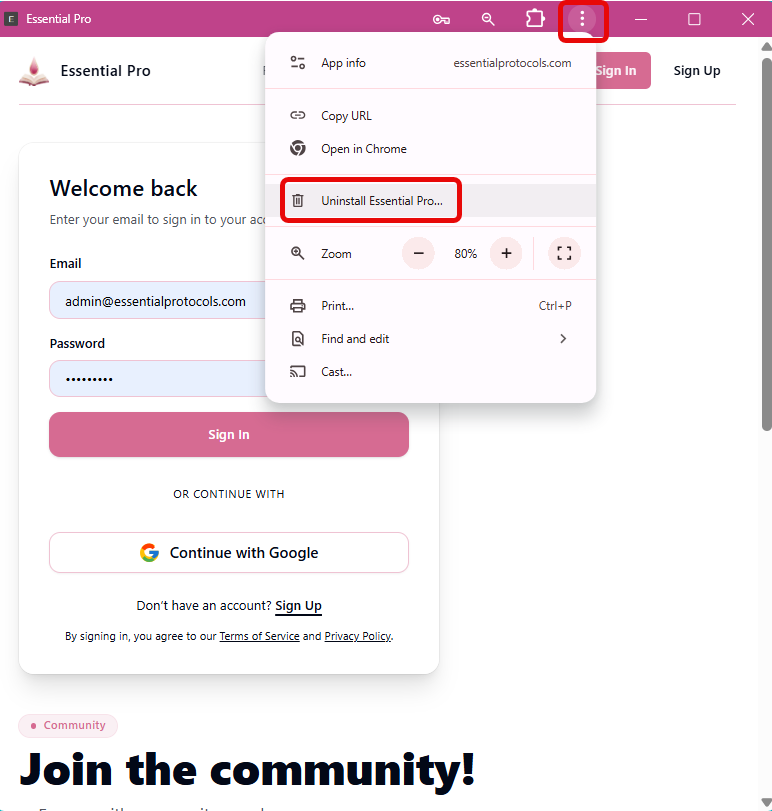
- 9Uninstall the app by clicking the three dots in the header and selecting "Uninstall Essential Pro"
Installation Complete!
Platform-Specific Instructions
Windows
After installation on Windows:
- • Find Essential Protocols in your Start Menu under "E"
- • Pin to Start Menu: Right-click → "Pin to Start"
- • Pin to Taskbar: Right-click → "Pin to taskbar"
- • Create desktop shortcut: Right-click → "Create shortcut" → choose Desktop
- • The app will open in its own window without browser tabs or address bar
Mac
After installation on Mac:
- • Find Essential Protocols in Applications folder or Launchpad
- • Add to Dock: Drag from Applications to your Dock
- • The app will appear in your Applications folder like any other Mac app
- • Use Spotlight (⌘ + Space) to search and launch "Essential Protocols"
- • The app opens as a separate application, not in Chrome
Linux
After installation on Linux:
- • Find Essential Protocols in your application menu
- • Location varies by distribution and desktop environment
- • The .desktop file is typically created in ~/.local/share/applications/
- • Pin to favorites panel if your desktop environment supports it
- • Launch via application launcher or command line
Benefits of Installing the PWA
- • Dedicated Window: Runs in its own window without browser clutter
- • Quick Launch: Access from Start Menu, Applications, or Desktop
- • Offline Access: View saved protocols without internet
- • Automatic Updates: Always have the latest version
- • Better Focus: No browser tabs or extensions to distract you
- • System Integration: Appears in Alt+Tab (Windows/Linux) or ⌘+Tab (Mac)
- • Keyboard Shortcuts: Full support for app-specific shortcuts
- • Better Performance: Faster loading and smoother experience
System Requirements
- • Windows 10 or newer, macOS 10.13+ (High Sierra), or modern Linux distribution
- • Chrome 73+, Edge 79+, or other Chromium-based browser
- • At least 100MB of free disk space
- • Active internet connection for initial installation
Troubleshooting
Can't Find Install Option?
If you don't see the install icon or menu option:
- • Update your browser to the latest version
- • Make sure you're using a Chromium-based browser (Chrome, Edge, Brave, Opera)
- • Try refreshing the page (F5 or ⌘+R)
- • Clear your browser cache and cookies, then reload
- • The install option only appears on the actual site, not when reading from cache
- • Some browsers hide the install option if you've previously dismissed it - look in the menu instead
Installation Failed?
If the installation doesn't complete:
- • Check that you have enough disk space
- • Ensure you have a stable internet connection
- • Temporarily disable browser extensions that might interfere
- • Try restarting your browser
- • On Windows, make sure you have permission to install applications
App Won't Launch After Installing?
If the installed app doesn't open:
- • Try launching directly from the browser's app menu (chrome://apps in Chrome)
- • Uninstall and reinstall the app
- • Check if your antivirus software is blocking it
- • On Windows, check Windows Defender settings
- • Try opening the website in your browser first, then install again
Multiple Windows
You can open multiple instances of Essential Protocols in separate windows:
- • Windows/Linux: Right-click the app icon → New window
- • Mac: File → New Window (when app is focused)
- • Useful for comparing protocols or working on multiple tasks
App Settings
You can manage the installed app's settings and permissions:
- • Chrome: chrome://apps → Right-click Essential Protocols → App info
- • Edge: edge://apps → Right-click Essential Protocols → App info
- • Control permissions like notifications, location, camera/microphone access
- • Manage storage and cached data
- • View app details and version information
Data and Login
Difference from Web Version
The installed PWA provides the same functionality as the web version, but with these advantages:
- • Dedicated app window without browser UI
- • Appears as a separate app in your taskbar/dock
- • Can be launched independently without opening the browser first
- • Better focus and fewer distractions
- • More native-feeling experience
- • Better keyboard shortcut support