
Essential Protocols can be installed on your Android phone as a Progressive Web App (PWA). This gives you a native app-like experience with quick access from your home screen, offline capabilities, and automatic updates.
Installation Steps
- 1Navigate to essentialprotocols.com in your Chrome browser or Scan this QR code from your device.

- 2Tap the three-dot menu icon in the top-right corner of Chrome
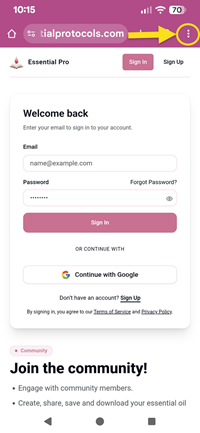
- 3Look for "Add to Home screen" or "Install app" in the menu and tap it
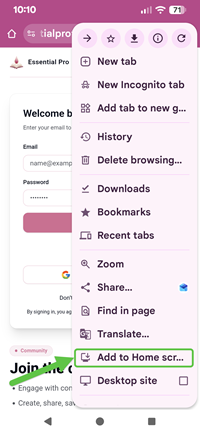
- 4A popup will appear - you can customize the app name if desired, then tap "Add"
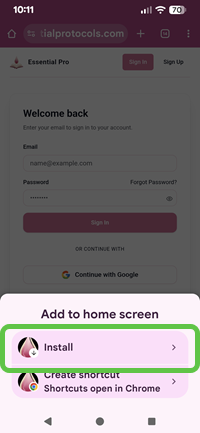
- 5Click "Install" to confirm
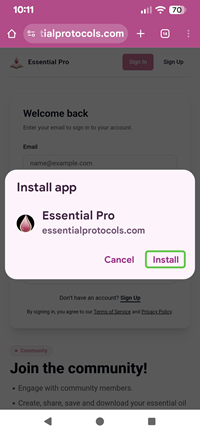
- 6The Essential Protocols icon will now appear on your home screen
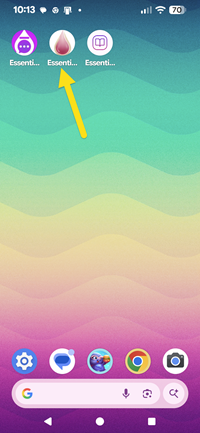
- 7Tap the icon to open Essential Protocols as a standalone app
Installation Complete!
You can now access Essential Protocols directly from your home screen. The app will work even with limited connectivity and will update automatically when you're online.
Alternative Method: Install Banner
Chrome may automatically show an "Install" banner at the bottom of the screen when you visit Essential Protocols. If you see this banner:
- • Simply tap "Install" on the banner
- • Confirm the installation when prompted
- • The app will be added to your home screen
Benefits of Installing the PWA
- • Quick Access: Launch directly from your home screen
- • Full-Screen Experience: No browser address bar or tabs
- • Offline Access: View saved protocols even without internet
- • Automatic Updates: Always have the latest version
- • Push Notifications: Get notified of messages and updates
- • Better Performance: Faster loading and smoother navigation
Requirements
To install Essential Protocols as a PWA on Android, you need:
- • Android 5.0 (Lollipop) or newer
- • Chrome browser version 76 or newer (or other Chromium-based browsers)
- • Active internet connection for initial installation
Troubleshooting
Can't Find "Add to Home Screen"?
If you don't see the install option:
- • Make sure you're using Chrome browser (not Samsung Internet or Firefox)
- • Update Chrome to the latest version from the Play Store
- • Try refreshing the page (pull down to refresh)
- • Clear your browser cache and try again
App Won't Install?
If installation fails:
- • Check that you have enough storage space on your device
- • Ensure you have a stable internet connection
- • Try restarting Chrome and your device
- • As a last resort, uninstall and reinstall Chrome
How to Uninstall
To remove the app from your device:
- • Long-press the Essential Protocols icon on your home screen
- • Tap "Uninstall" or "Remove from Home screen"
- • Or go to Settings → Apps → Essential Protocols → Uninstall
Note About Permissions
The installed PWA may request permissions for notifications, location (if applicable), or camera access (for uploads). You can manage these permissions in your Android settings at any time under Settings → Apps → Essential Protocols → Permissions.